How to publish an MCP to Muse
To submit a connector to Muse, you sign in to Meta’s Muse Connector Platform, describe your MCP server and your business, hand over credentials and a test account, and wait while Meta reviews every tool. This guide covers each step, from the requirements your server has to meet to tracking the review in the portal. I compare it with the ChatGPT and Claude processes, and show where MCP Tower helps: testing your server before you submit, then measuring its traffic once it is published.
The whole process, in order:
- Check that your connector finishes tasks and does more than Muse’s browser can.
- Classify every tool as Read, Write or Sensitive write.
- Test OAuth and validate your tool descriptions in MCP Tower.
- Prepare the overview, business documents, data questionnaire, credentials and test account.
- Sign in at platform.muse.ai and submit.
- Track the Muse connector review in the portal.
- After approval, keep the connector stable and measure who uses it.
If you are still deciding whether the listing is worth the effort, read why Muse connectors are a new MCP growth channel first.
1. Check the core requirements
To publish an MCP server to Muse, it has to meet the two requirements that open Meta’s connector guidelines. A connector that misses either one is unlikely to get far.
- Complete the task. Muse should be able to finish every task your connector starts, within its approved tools: search, pricing, authorization, checkout, confirmation and follow-up. Sending the user off to finish the whole checkout “does not meet the completion requirement”.
- Add value beyond the browser. Muse can already browse the web, so your connector has to bring better information, account access, more reliable actions or fewer steps. “A wrapper around public pages or a list of links alone is not enough.” A read-only connector can still qualify when the information itself is the outcome.
Also check the trust and integrity rules: request only the data each tool needs, no selling user data or training models on it, accurate prices and outcomes, credentials kept out of prompts, logs and URLs, and a report to Meta within 48 hours of a security incident. Finance connectors are limited to read access for now.
2. Classify every tool
Muse sorts tools into three classes, and the review checks each one:
| Class | Example | What the user sees |
|---|---|---|
| Read | Check availability | Asked on first use, can choose Always allow |
| Write | Update a profile | Asked on first use, can choose Always allow |
| Sensitive write | Pay for a booking | Asked every time: only Allow once or Deny |
Never hide a send, share, publish or payment inside a tool described as a read or a routine edit. Approval covers only the action and details shown, so if the price or details change after the user approves, ask again (scope of approval). If you sign users in with OAuth, offer a Read Only option where you can.
Meta says tool annotation in the portal is coming soon. Until then, put the Read, Write and Sensitive write labels in your tool documentation.
3. Test OAuth and your tools in MCP Tower
Directory reviews are strict, and in my view prompt injection is the main reason. A tool’s name and description go straight into the agent’s context, so a vague or misleading description can steer the model, and a reviewer has to rule that out for every tool. Muse’s tool review checks each tool’s classification, and only compliant tools are approved.
Fix what a reviewer would flag before they see it. When you add your server to MCP Tower, its Inspect module validates every tool and its description and gives you recommendations. You can fix them on your server and scan again, or change a tool’s title and description right in Inspect with an override, without waiting for your developers. It is also a quick way to review every tool before you write its Read or Write label.
Authentication is the other common cause of delay. If a reviewer cannot sign in, they cannot test anything. MCP Tower signs in to your server the way ChatGPT and Claude do and reports the first place where the flow breaks, with the fix.
Tip
Run the OAuth checks in MCP Tower before you submit to Muse. Meta asks for integration credentials and a test account that stays available through review, and a sign-in that fails for the reviewer stalls the submission.
Do this behind the hostname you will keep. The endpoints you submit are the ones Meta reviews, so put MCP Tower in front of your server first (onboarding) and submit its URL.
4. Prepare the submission material
Section 5 of the guidelines, Submit through the Muse Connector Platform, lists what to have ready:
| Item | What it covers |
|---|---|
| Connector overview | Who uses it, the tasks it supports, how it improves on browser use, and any restrictions |
| Business verification, terms | Verification evidence, brand assets, your terms, contacts and a maintaining developer |
| Data processing questionnaire | What data you access and why, how it is protected, who receives it, retention and deletion |
| Integration credentials, docs | Endpoints, authentication, scopes, credentials; per tool: classification, side effects, errors, rate limits |
| Test account and demo | A dedicated account for reviewers, with a way to test checkout without real charges |
Two items deserve extra care. The test account has to stay available for the whole review, so do not tie it to an employee who might leave or a trial that expires. And the overview is your chance to answer the browser question before a reviewer asks it: name the account data or actions that Muse cannot reach through public pages.
If your connector takes payments, read the transactions rules first. Before the user commits, the connector must show the seller, full price, recurring charges, key terms and the cancellation or refund policy, and it must prevent duplicate transactions.
5. Submit a connector to Muse at the platform
Submissions are made at platform.muse.ai/submissions. You need an account first: the platform asks you to sign in or create one with your work email. You also accept Meta’s Connector Platform Terms, which let Meta review, test, approve, reject or require changes to any connector at its discretion, and re-review it later.
Follow the credential instructions in the form. Section 5.7 of the guidelines adds one practical note: check the status in the portal, because Meta does not answer individual status emails.
6. Track the Muse connector review
Meta’s review process has three stages:
- Risk assessment. Security, privacy and integrity. Meta may ask for more information.
- Tool review. Each tool’s classification. Approval of the connector does not cover tools that were not approved.
- End-to-end QA. Full workflows, permissions, results and failure handling, with manual review. Sensitive writes must ask for approval every time.
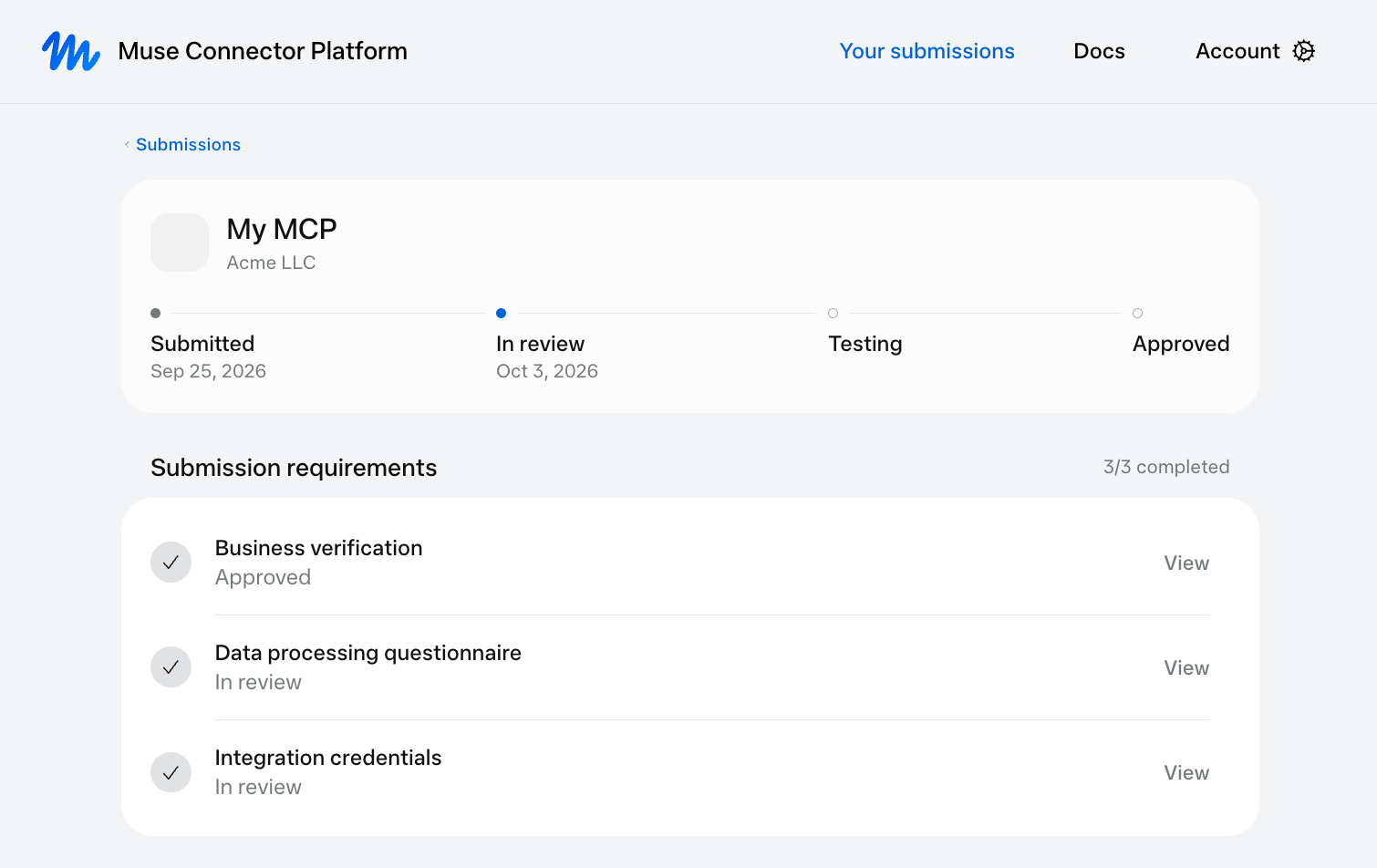
Meeting the guidelines does not guarantee approval. In the screenshot at the top of this guide, the status track runs Submitted, In review, Testing, Approved. Below it, the portal tracks three requirements on their own: in this example business verification is already approved, while the data processing questionnaire and integration credentials are still in review. Each has a View link that opens what you sent.
Muse connector approval time
Meta does not publish a review time, and the docs give no timeline apart from the 48-hour incident rule. In the example above, the submission moved from Submitted to In review in eight days. A single example says little about the whole review, so plan your launch around the status in the portal rather than a fixed date.
7. After approval: stay listed and measure usage
Once approved, the connector can be found by the Muse agent and in Settings > Connectors, per the discovery section. Featuring is a separate editorial decision based on usefulness, task completion, reliability and maintenance.
Keep the connector stable. Meta can re-review an approved connector at any time, and if you change a tool’s text, including with an MCP Tower override, the live server no longer matches what Meta reviewed. Check the rules before you do, as the catalog listings note explains.
Meta’s docs do not describe a usage dashboard for connector developers. This is the second place MCP Tower comes in. Because it sits in front of your server, it records every call as it passes through: which agent made it and how far that label can be trusted, which tool it called, how long it took and what failed. It also tracks link clicks from tool results and interactions inside widgets, and checks your server’s uptime even when nobody is using it. Reliability and maintenance are featuring criteria, so these are the numbers to watch.
Muse vs Claude vs ChatGPT submission
Most teams list in several assistants. Here is how the processes compare, from each vendor’s docs and, for Claude and ChatGPT, my own submissions. Step-by-step guides: Claude and ChatGPT.
| Muse | Claude | ChatGPT | |
|---|---|---|---|
| Where you submit | Form at platform.muse.ai | Developer portal at claude.ai/directory/manage | ZIP upload at platform.openai.com/plugins |
| Who can submit | A business that passes verification | Any paid Claude plan | A verified individual or business |
| What testers get | Test account, checkout without real charges | Main tasks, example prompts, test account | Positive and negative test cases, video, demo account |
| Tool labels | Read, Write, Sensitive write in your docs | readOnlyHint or destructiveHint annotations | Annotations from your server |
| First approval | Not published | 3–4 months in my experience | 3+ months in my experience |
| Usage analytics | Not described in the docs | Health, tool calls, error rate, latency | None |
The biggest difference is the focus. ChatGPT wants to know which prompts should and should not trigger your tools. Claude asks what users will do and how a reviewer can try it. Muse asks whether the agent can finish the job safely, which is why it puts so much weight on permissions, payments and failure handling.
I also cover Perplexity and Gemini.
Summary
- Make sure the connector completes tasks and beats the browser.
- Label every tool Read, Write or Sensitive write.
- Run MCP Tower’s tool validation and OAuth checks, and fix what they report.
- Prepare the overview, business verification, data questionnaire, credentials and test account.
- Sign in and submit at
platform.muse.ai/submissions. - Follow the status in the portal; Meta does not answer status emails.
- Once approved, keep the server stable and measure its traffic.
Submitting a connector to Muse takes careful paperwork and an honest look at every tool. Test the server in MCP Tower before you submit so the review is not held up by a sign-in bug, and keep it behind MCP Tower after launch to see how agents use it.
Open MCP Tower